
How to Upscale 4K to 8K: Is AI Video Enhancement Worth It?
 Sara Smith
Most finished footage still arrives at 3840 × 2160, but client briefs, venue specs, and post workflows increasingly ask for 7680 × 4320. 4K to 8K upscaling is often the only practical path — the real question is whether the result justifies the storage, render time, and hardware cost.
This guide walks through that decision first, then covers source prep, a step-by-step AI workflow, and export settings for delivery. If your source is still 1080p, start with our 1080p to 4K guide before attempting 8K.
Related: 720p to 1080p guide · 1080p to 4K guide · Online 4K upscaler
Is 4K to 8K Upscaling Worth It? When the Extra Pixels Pay Off
Before committing GPU hours and disk space, it helps to understand what the jump actually involves — and which workflows genuinely benefit from it.
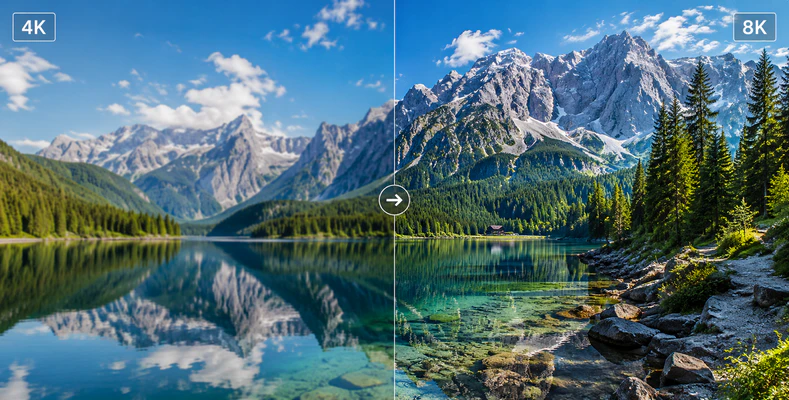
Moving from 4K to 8K doubles width and height, quadrupling total pixels from 8.29 MP to 33.18 MP per frame. At that scale, noise, softness, and compression blocks in your source become more visible unless the upscaler includes intelligent denoise and detail synthesis. A plain timeline resize fills 8K dimensions without adding texture; AI predicts how edges and surfaces resolve at 7680 × 4320. On a clean 4K master, the difference against a bicubic resize is often obvious on a large panel.
| Scenario | Worth it? | Why |
|---|---|---|
| Digital signage, trade shows, immersive installs | Yes | Panels often run native 8K; viewers stand close |
| Heavy reframing or crop headroom in post | Yes | 8K gives usable pixels after aggressive crops |
| Oversampling (8K process → 4K deliver) | Often | Downscale after AI can reduce noise and stabilize edges |
| 85"+ 8K TV, normal seating | Sometimes | Visible only on high-quality 4K masters |
| Phone / laptop / YouTube badge | No | Screen or bandwidth caps hide the extra pixels |
Most commercial 4K to 8K work serves signage, post reframing, and replay walls — not living-room TVs. If nobody in your delivery chain can play 8K, skip the upscale.
When the answer is yes, AI enhancement matters more here than at smaller jumps. Bicubic scaling spreads existing pixels without inventing texture; AI super-resolution learns how fine structure — fabric, foliage, architecture — typically appears at 8K and predicts missing detail from context. One related workflow worth knowing: some post teams upscale to 8K, grade or denoise in the larger canvas, then downscale to 3840 × 2160 for final delivery. Oversampling can produce a subtly cleaner 4K master on some material — test a 30-second clip against a direct 4K AI pass before committing to a full render.
Limits remain either way: out-of-focus or heavily compressed 4K will not become razor-sharp 8K. If your scenario fits the "Yes" or "Often" rows above and your source is a clean 4K master, the workflow in the next section is where to start.
How to Upscale 4K to 8K (AI Step-by-Step Guide)
Once you've confirmed the upscale is justified, source quality sets the ceiling — a few minutes of prep often saves hours of re-rendering at 33-megapixel frame sizes.
- Use the least-compressed file: Camera original or ProRes/DNxHR mezzanine — not a streaming re-upload.
- Confirm true 3840 × 2160: Some "4K" files are upscaled from 1080p.
- Fix exposure and deinterlace first: AI cannot recover blown highlights or comb artifacts.
- Trim dead sections: At 8K, every wasted minute costs disk space and render time.
At 8K, tool choice matters as much as source prep. NLE timeline scaling can output 7680 × 4320 dimensions but does not recover detail — the result is a larger file with the same perceived sharpness. Browser-based upscalers work for quick tests, but 8K file sizes and render times make local desktop processing the realistic option for anything beyond a short clip.
For a full 4K to 8K pass, look for software with a native 7680 × 4320 output path, segment preview, and batch queue support — at 33 MP per frame, a mistaken model choice means hours of wasted GPU time. The walkthrough below uses AVCLabs Video Enhancer AI as an example: you can denoise or deinterlace in the same job before the upscale, switch between Ultra (Multi-Frame) and Denoise to match clean cinema B-roll versus noisy venue captures, and line up multiple signage or event files while each clip renders overnight. If you use another desktop AI tool, the overall flow is similar: import, pick a model, set 8K output, preview, export.
Step 1 Import your 4K video
Launch AVCLabs Video Enhancer AI and import your 3840 × 2160 (4K) video. If needed, verify the source resolution in the file information panel before processing.
Step 2 Choose an AI model and set 8K output
Choose either the Upscale Video by 200% preset for a one-click workflow, or manually set the output resolution to 8K (7680 × 4320) from the Output menu. Once you've selected the output option, choose the AI enhancement model that best matches your footage.
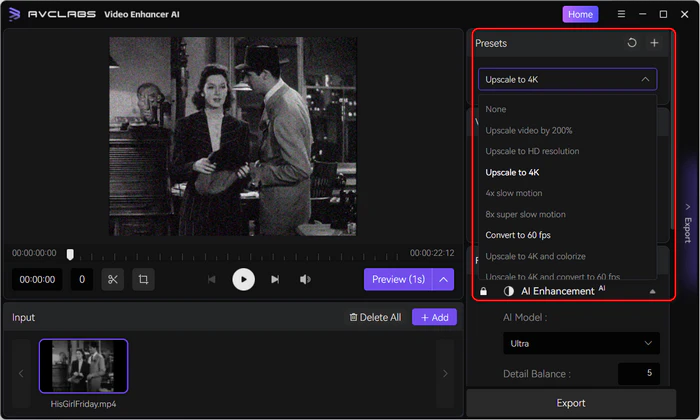
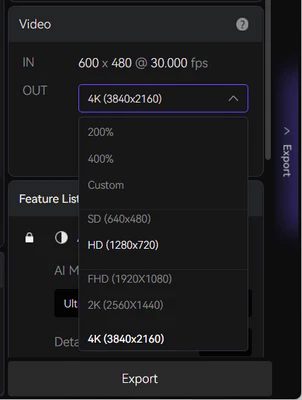
For example, use Ultra (Multi-Frame) for clean, high-quality footage, or Denoise if your video contains noticeable noise or compression artifacts.
Step 3 Preview and export
Move the timeline to the section you want to inspect, then click Preview. Choose a preview length of 1, 3, 5, or 10 seconds to evaluate the enhancement quality before processing the entire video.
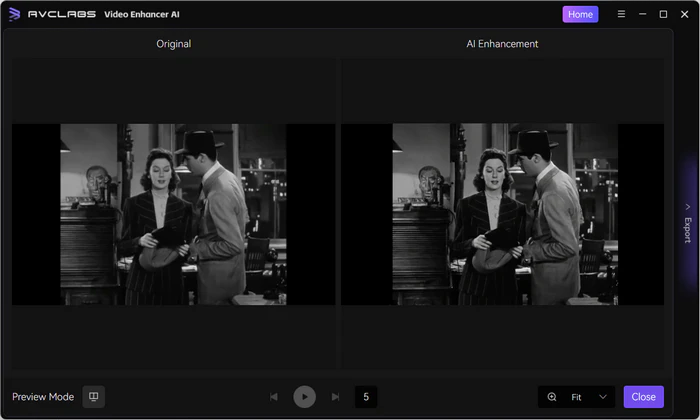
Once you're satisfied with the preview, click Export to export the upscaled 8K video.
Step 4 Verify the final output
After exporting, confirm that the output resolution is 7680 × 4320 (8K) in your media inspector. Whenever possible, review the video on the target 8K display, since fine details and AI enhancements may appear differently on a standard 1080p monitor.
Why AVCLabs for 4K → 8K
- Direct 8K UHD output (7680 × 4320) from 4K camera originals
- Denoise and deinterlace in the same job before the 4× pixel jump
- Preview short segments before batching long signage or event renders
- Overnight batch queues for multi-file venue and trade-show packages
After the AI Pass: Recommended 8K Export Settings & Pre-Delivery Review
After AI enhancement finishes, export settings and hardware determine whether the extra detail survives handoff to a client, signage player, or platform. Under-encoding wastes the upscale; over-encoding fills drives without visible gain.
| Delivery Target | Suggested Codec / Bitrate |
|---|---|
| 8K signage player | H.265 80–120 Mbps or vendor-spec ProRes |
| YouTube 8K | H.265 50–70 Mbps (platform recompresses) |
| Editing / client review | ProRes 422 HQ or DNxHR HQX |
| 4K deliverable after oversample | H.265 25–40 Mbps at 3840 × 2160 |
8K files grow fast — a one-minute H.265 clip at 100 Mbps is roughly 750 MB. Plan accordingly:
- GPU: NVIDIA RTX 3060+ or Apple M-series with 16 GB+ is a practical minimum.
- RAM / storage: 32 GB RAM and fast NVMe with 3× expected output size free.
- Render time: A one-minute clip may take 15–45 minutes on a mid-range GPU. Batch overnight for long-form content.
Before handing off the file, run a quick quality pass — do not sign off an 8K deliverable from a 1080p review monitor alone:
- Inspect fine lines (architecture, hair, text) at 100% zoom.
- Check for AI halos around high-contrast edges.
- Play back on the target 8K display, not just a 1080p monitor.
- Encode a short test at delivery bitrate and inspect blocking on gradients.
- Compare against a downscaled 4K version — sometimes 4K looks equally good on the final display.
FAQ About 4K to 8K Upscaling
Can I upscale 1080p straight to 8K?
Technically yes, but a 1080p to 4K pass first usually produces a cleaner result.
Does YouTube support 8K?
Yes, but playback adapts to bandwidth. Most viewers never receive the full 8K stream.
How big is an 8K video file?
A one-minute H.265 clip at high quality often exceeds 500 MB.
Is AI upscaling ethical for commercial work?
Disclose when deliverables are upscaled rather than natively shot, especially in broadcast and stock contracts.
Conclusion
4K to 8K AI enhancement earns its place when an 8K panel, signage contract, or reframing workflow genuinely needs the pixels — not as a default step in every pipeline. Start from a clean 4K master, preview before batching, and match export settings to your delivery target.
If nobody in the chain can play or inspect 7680 × 4320, skip the upscale. When the use case fits, a well-executed AI pass on clean 4K footage can hold up on large-format playback.